
Renew the Registration Authority (RA) certificates for the Network Device Enrollment Service (NDES)
Once NDES has been in operation for some time (typically two years), one is faced with the challenge of renewing the Registration Authority (RA) certificates. Unfortunately, this process is not necessarily solved intuitively and is therefore described in more detail in this article.
The Network Device Enrollment Service (NDES) provides a way for devices that do not have an identifier in Active Directory (for example, network devices such as routers, switches, printers, thin clients, or smartphones and tablets) to request certificates from a certification authority. For a more detailed description, see the article "Basics: Network Device Enrollment Service (NDES) ".
The renewal of RA certificates is technically a request for new certificates, therefore this term is also used below
When the NDES role is installed, two default certificate templates are published on the associated certification authority, which are used to request the Registration Authority certificates.
- CEP Encryption
- Exchange Enrollment Agent (Offline Request)
Option 1: Requesting new RA certificates with custom certificate templates (recommended)
Do you know TameMyCerts? TameMyCerts is an add-on for the Microsoft certification authority (Active Directory Certificate Services). It extends the function of the certification authority and enables the application of rule sets to realize the secure automation of certificate issuance. TameMyCerts is unique in the Microsoft ecosystem, has already proven itself in countless companies around the world and is available under a free license. It can be downloaded via GitHub and used free of charge. Professional maintenance is also offered.
At the latest for the upcoming renewal of the RA certificates, it is advisable to configure and use customized certificate templates, as these offer some advantages over the default templates.
The configuration and request of RA certificates with custom certificate templates is described in the article "Using custom Registration Authority (RA) certificate templates for the Network Device Enrollment Service (NDES) ". This method should be preferred.
However, if desired, the renewal can also be done using the default templates, which is described below.
Option 2: Requesting new RA certificates using the default NDES certificate templates
Certificate renewal with the default templates consists of the following steps:
- Configuration of the certificate templates (permissions to request)
- Requesting the CEP Encryption certificate in the computer certificate store
- Requesting the Exchange Enrollment Agent certificate in the user certificate store
- Exporting the Exchange Enrollment Agent certificate from the user certificate store
- Importing the Exchange Enrollment Agent certificate to the computer certificate store
- Set permissions on private keys
Background
First, a brief explanation of why the procedure is so complicated: The Registration Authority certificates must be placed in the computer certificate store of the NDES system. However, one of the two certificate templates is configured as a user certificate template, so it cannot be requested in the computer store
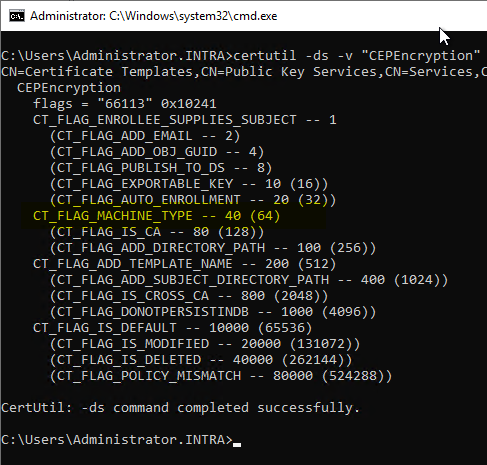
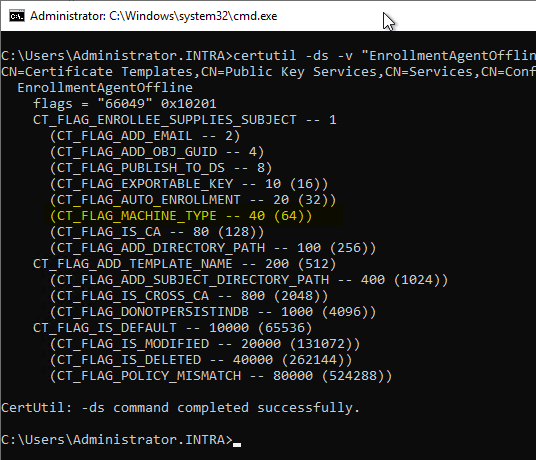
The following command line commands provide insight into the flags set on the certificate templates:
certutil -ds -v "CEPEncryption"
certutil -ds -v "EnrollmentAgentOffline"
The CEP Encryption template includes the CT_FLAG_MACHINE_TYPE flag, which ensures that a certificate for this template can only be requested for computer accounts.
The Exchange Enrollment Agent (Offline Request) template, on the other hand, is missing the CT_FLAG_MACHINE_TYPE flag, so certificates can only be requested in the user context.
Theoretically you could set the CT_FLAG_MACHINE_TYPE flag on the Exchange Enrollment Agent certificate template using Active Directory tools such as the ADSI Editor (adsiedit.msc), but this is not supported by the vendor, i.e. you will not get any support in case of failure.
Certificate template configuration
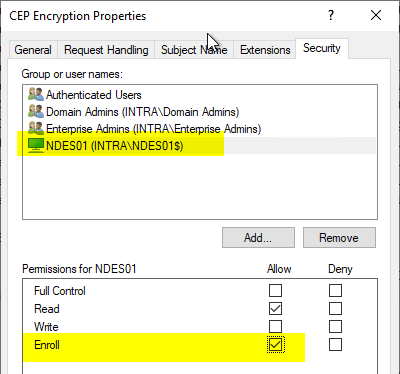
In the "Security" tab of the CEP Encryption certificate template, the computer account of the NDES server must be given the permission to request certificates from this template.
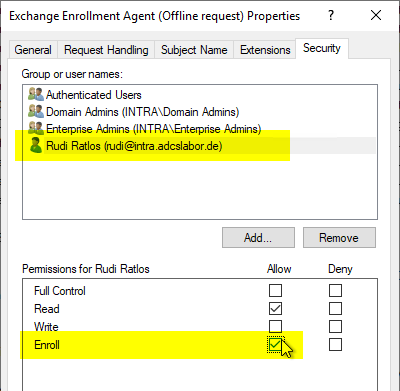
Therefore, in the "Security" tab of the Exchange Enrollment Agent (Offline Request) certificate template, the user who will request the certificate must be granted the permission to request certificates from this template.
Requesting the CEP Encryption certificate in the computer certificate store
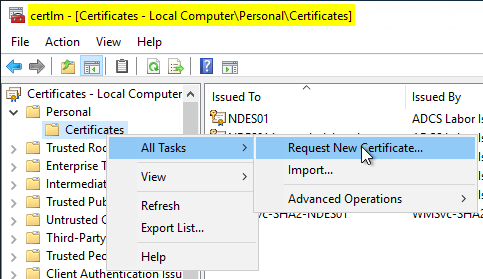
The CEP Encryption certificate template can be requested directly via the computer certificate console (certlm.msc) of the NDES server. To do this, right-click on the "Certificates" node under "Personal" and select "All Tasks" - "Request New Certificate...".
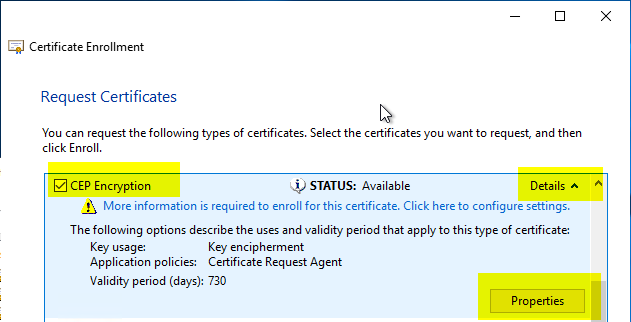
The CEP Encryption template should be available. Before the certificate request can be sent, it must be configured. To do this, click on "Details" and then on "Properties".
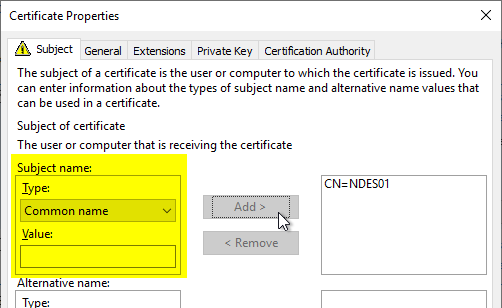
The certificate request must contain an identity. This can either be in the form of a subject of the type "Common Name" or as a subject alternative name (or both). The content of the identity does not matter from a technical point of view and should rather be selected on the basis of organizational criteria.
The certificate request can then be sent to the certification authority.
Requesting the Exchange Enrollment Agent certificate in the user certificate store
In contrast to the CEP Encryption certificate template, the Exchange Enrollment Agent certificate template must be requested via the user certificate management console (certmgr.msc). To do this, right-click on the "Certificates" node under "Personal" and select "All Tasks" - "Request New Certificate...".
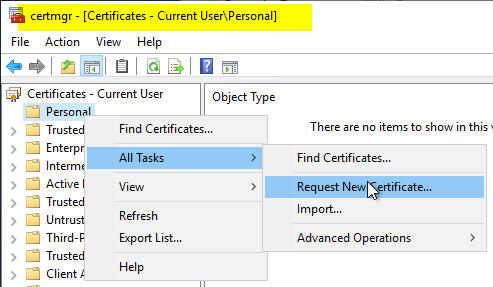
The Exchange Enrollment Agent (Offline Request) template should be available. Before the certificate request can be sent, it must be configured. To do this, click on "Details" and then on "Properties".
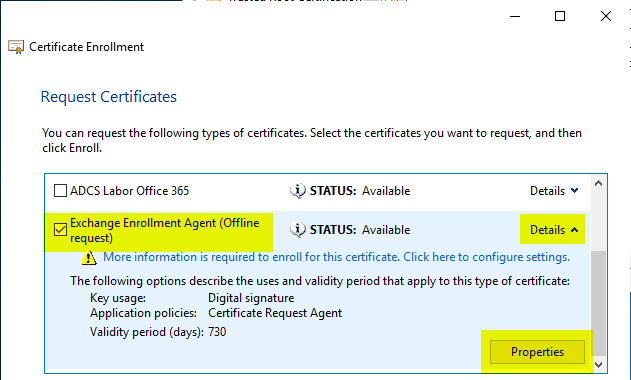
The certificate request must contain an identity. This can either be in the form of a subject of the type "Common Name" or as a subject alternative name (or both). From a technical point of view, the content of the identity is irrelevant and should rather be selected on the basis of organizational criteria.
In the "Private Key" tab, the option "Make private key exportable" must be activated under "Key Options" so that the certificate can then be exported including the private key.
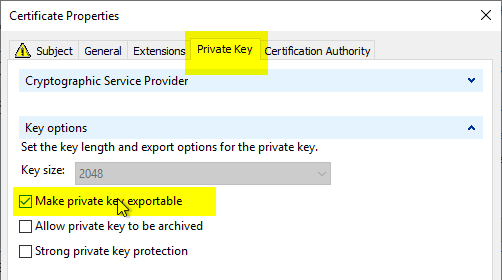
The certificate request can then be sent to the certification authority.
Exporting the Exchange Enrollment Agent certificate from the user certificate store
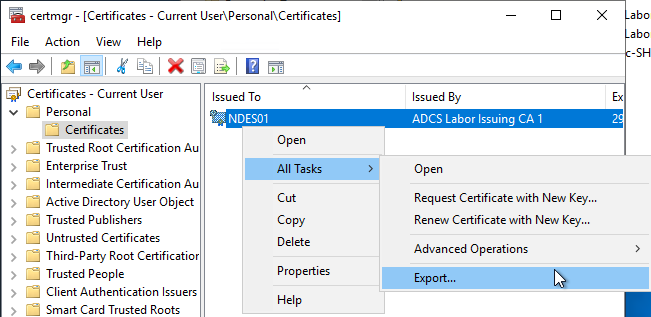
In the user certificate management console, the requested certificate is now right-clicked and the option "All Tasks" - "Export..." is selected.
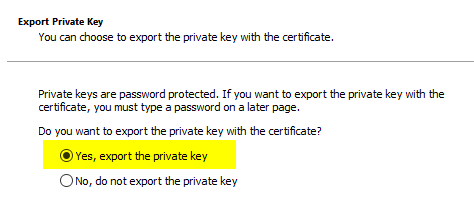
One chooses the option that one wants to export the private key
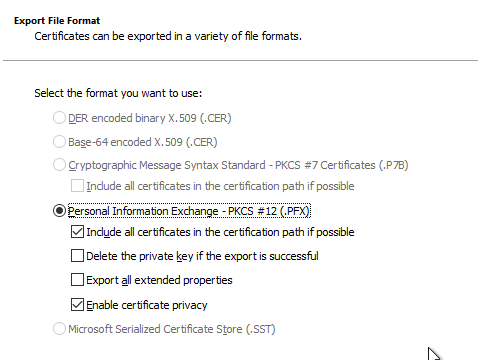
Select "Personal Information Exchange - PKCS #12 (.PFX)" as the file format, which is the default selection. The option "Include all certificates in the certificate path if possible" can be deactivated if desired.
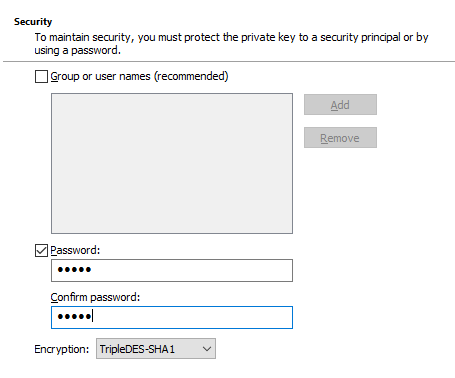
One assigns a password for the exported certificate.
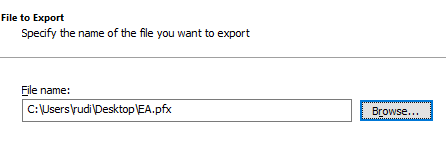
You assign a location and a file name for the certificate.
Afterwards, the wizard can be closed.
Importing the Exchange Enrollment Agent certificate to the computer certificate store
Now switch to the computer certificate management console (certlm.msc) and right-click on the "Certificates" node under "Personal" and select "All Tasks" - "Import...".
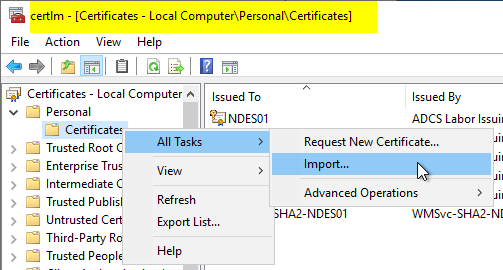
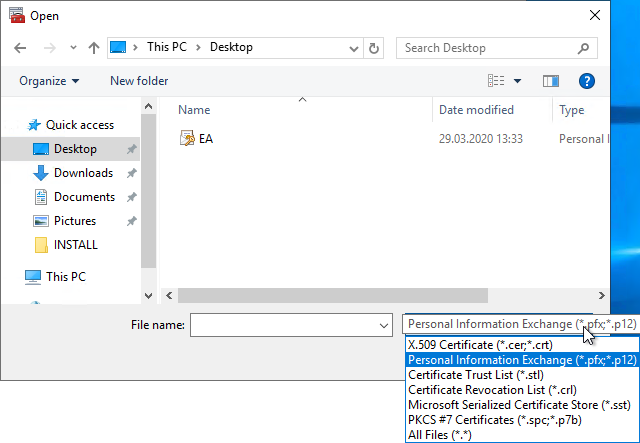
Select the previously exported file. If it is not displayed, the display filter must be changed to "Personal Information Exchange (*.pfx; *.p12)".
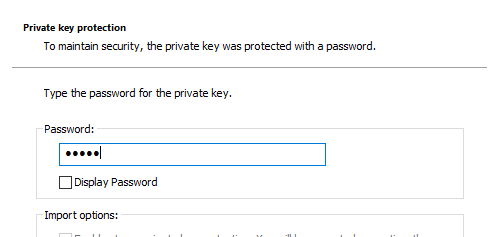
One enters the previously assigned password.
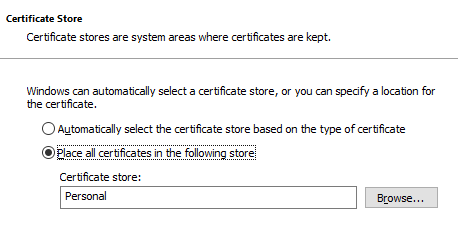
Confirm that the certificate should be imported into the "Personal" certificate store.
Now the wizard can be closed.
Set permissions on private keys
Now the permissions on the private keys of both certificates must be set. This is done via the management console for computer certificates (certlm.msc).
Right-click on the two certificates one after the other and select "All Tasks" - "Manage Private Keys...".
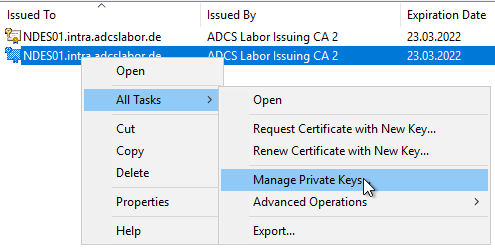
The NDES service account requires "Read" permission on the private key.
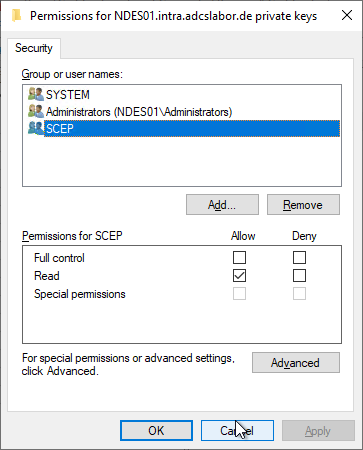
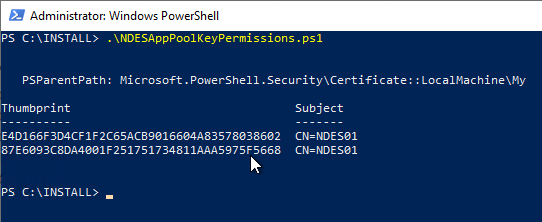
If NDES is running under the identity of the SCEP IIS application pool, you run into the problem that you cannot enter it via the certificate management console. But you can find here a PowerShell script with which this can be done.
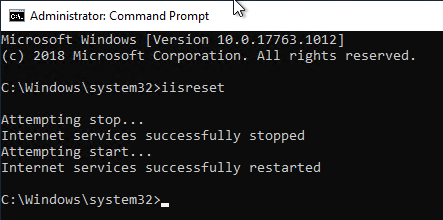
NDES can then be restarted with the iisreset and should then work as usual.
Functional test
The NDES service is only loaded when the first client connects. In order to ensure that the NDES service can use the certificate after it has been requested, this client connection should be simulated. The following Windows PowerShell command can be used for this purpose:
[void](Invoke-WebRequest -Uri "http://localhost/certsrv/mscep/mscep.dll/pkiclient.exe?operation=GetCACaps")Afterwards, the Event Viewer of the NDES server can be checked to see whether the service could be started successfully (event no. 1 ).
Related links:
- Using custom Registration Authority (RA) certificate templates for the Network Device Enrollment Service (NDES).
- The Network Device Enrollment Service (NDES) logs the error message "The Network Device Enrollment Service cannot retrieve one of its required certificates (0x80070057). The parameter is incorrect."
External sources
- Steps for renewing NDES Service Certificates (Microsoft)