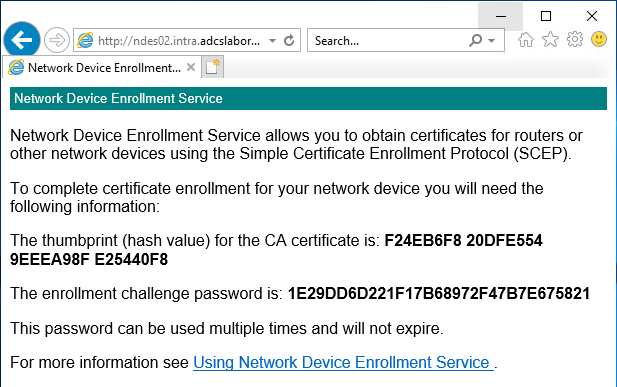
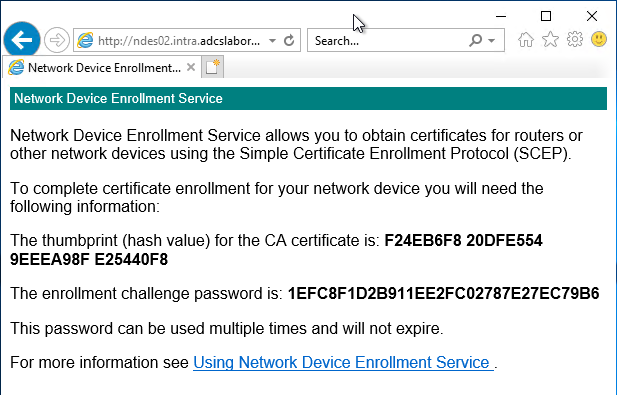
Regular password change when configuring the Network Device Enrollment Service (NDES) with a static password
Suppose you are running a Network Device Enrollment Service (NDES) that is configured to use a static password . In this case, unlike in the default configuration, the password for requesting certificates by NDES clients never changes.
However, one may aim for an intermediate way, for example, a daily change of the password. The following describes a way to automate the change of the password.
The Network Device Enrollment Service (NDES) provides a way for devices that do not have an identifier in Active Directory (for example, network devices such as routers, switches, printers, thin clients, or smartphones and tablets) to request certificates from a certification authority. For a more detailed description, see the article "Basics: Network Device Enrollment Service (NDES) ".
To force a password change, the current password must be deleted from the registry. It is located in the following path:
HKEY_LOCAL_MACHINE\SOFTWARE\Microsoft\Cryptography\MSCEP\EncryptedPassword\EncryptedPassword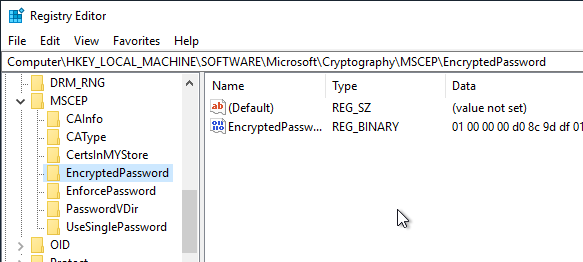
Do you know TameMyCerts? TameMyCerts is an add-on for the Microsoft certification authority (Active Directory Certificate Services). It extends the function of the certification authority and enables the application of rule sets to realize the secure automation of certificate issuance. TameMyCerts is unique in the Microsoft ecosystem, has already proven itself in countless companies around the world and is available under a free license. It can be downloaded via GitHub and used free of charge. Professional maintenance is also offered.
Then the SCEP application pool must be restarted so that a new password is generated.
Please note that from the moment of the change, all certificate requests using the previous password will no longer be accepted.
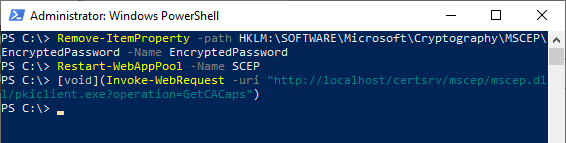
The process can be automated with the following three PowerShell commands. They also call the NDES server directly, so that a new password is generated right away.
Remove-ItemProperty `
-Path HKLM:\SOFTWARE\Microsoft\Cryptography\MSCEP\EncryptedPassword `
-Name EncryptedPassword
Restart-WebAppPool -Name SCEP
Start-Sleep -Seconds 15
[void](Invoke-WebRequest -Uri "http://localhost/certsrv/mscep/mscep.dll/pkiclient.exe?operation=GetCACaps")